Call To Order

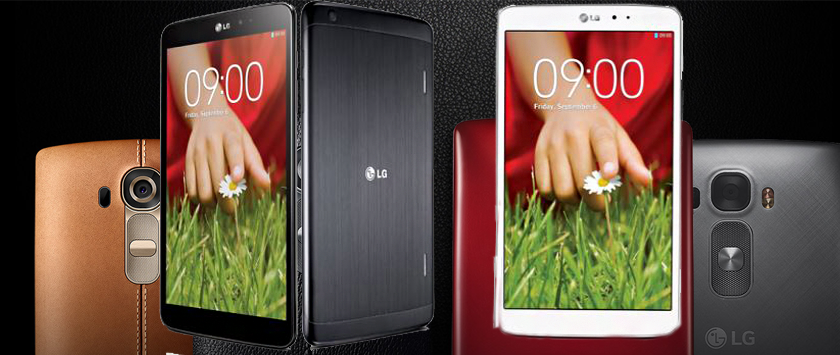
FEATURES OF LG SMART PHONE
Knock code
Plenty of Android device makers have their own special secure lock screen tricks. For example, Samsung has fingerprint readers on all its phones. LG has Knock Code, which not only incredibly useful, but complements the design nicely. With Knock Code, you can pick a series of screen taps in a two-by-two grid that will wake up the screen and instantly unlock the phone.
Knock Code really saves the day in that scenario. It's also very smart about how it interprets the taps—you don't have to be in the exact same spot each time, just make sure you tap in the right orientation relative to the first tap. You'll be offered a chance to set this up during the first run process, and you should at least give it a shot.
Disable apps
Most pre-installed apps can't be uninstalled, but you can at least disable them with a quick trip into the settings. This includes things like all those carrier apps and some of LG's built-in stuff like QuickMemo
To get rid of the pre-installed apps, head to the General tab of the main settings and tap on Apps. Go over to All and find the offending packages. When you tap on an entry, there will be an Uninstall or Disable button at the top of the screen. Disabling an app removes it from the app drawer and prevents it from running in the background. It's the next best thing to uninstalling, and it's all you can do with most pre-loaded apps.
Smart Notice settings
Among the first things to greet you on the LG's home screen is the Smart Notice widget. It occupies the top half of the main home screen panel and has a clock, weather, and (importantly) a text bar at the bottom. The text will be updated with contextual information throughout the day, and you can customize it by opening the settings (in the upper right corner of the widget).
Smart Notice contains notification features related to contacts, weather, phone info, and more. They are all enabled by default, but you can turn off anything you don't want popping up.
Some of the cards you might see include contact birthday reminders, severe weather alerts, and extreme battery drain warnings.
Kill Smart Bulletin
Just like every other phone maker these days, LG's Android interface comes with a custom home screen, and part of that home screen is Smart Bulletin. It sits to the left of the main screen like Google Now, except it's much, much less useful. It's basically just a collapsible list of widgets for LG's built-in apps.
You can get rid of Smart Bulletin by pulling up the home screen layout editor with a pinch gesture. Then just grab the Smart Bulletin page and drag it to the remove icon up top.
Alternatively, hit the settings icon at the top of Smart Bulletin and toggle the on/off switch.
Interruptions
The system to determine when you should be interrupted by a notification works a little differently on each phone. You can't access interruption modes from the volume popup, but there is a toggle in the notification drawer. Knowing how to turn it on manually is important, but you can also set a schedule and tweak what your interruption modes will do. Head into the main settings and find Interruptions under Sound & notification. This menu has all the settings for setting up a recurring schedule for priority mode. This is great for keeping the phone quiet at night or at work.
Smart lock
One of Android's killer features is Smart Lock, and it works particularly well on LG phones. Smart Lock allows you to set a secure lock screen, then have the simpler swipe-only lock method used when certain conditions are met. For instance, when you're in trusted locations, connected to trusted Bluetooth devices, or when the phone sees your face.
Plug in your cloud accounts
There are, of course, apps for services like Dropbox and OneDrive, LG also has system-level integration with a number of cloud storage providers. Head into the settings menu and find Cloud under the General > Personal section. It supports Dropbox, Drive, Box, OneDrive, and LG Cloud (which no one uses).
Screen pinning
Screen pinning is one of the coolest privacy features in Android Lollipop, but it's disabled and buried on almost every device. This feature lets you lock the device to a single app (pinning it) so you can let someone else use your phone without worrying they're going to snoop around.
Check out manual camera mode
You can take awesome snapshots with the LG in auto mode, but LG really stepped up its game this year when it comes to the manual camera mode. You can access the manual camera by tapping the menu button in the upper left corner of the viewfinder. Manual mode lets you control the ISO, shutter speed, focus, and more. All the buttons for this are along the bottom of the viewfinder.
Kindly click the link or the image below to place order
https://www.deluxe.com.ng/product-category/lg
www.deluxe.com.ng
Category