Call To Order

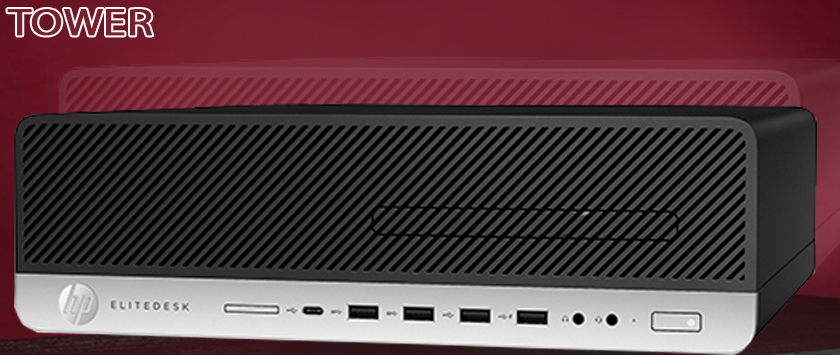
A tower serves mainly as a way to physically mount and contain all of the actual components inside of a computer, like the motherboard, hard drive, optical drive, floppy disk drive, etc. They typically come bundled with a power supply. Towers are vertically-oriented, and are generally placed on the floor, next to the desk where you use your computer. Computer towers are available in an enormous variety of sizes to suit every need.
Why a Tower is important
There are several reasons why we use Tower. One is for protection, which is easy to assume because it's the most obvious. Dust, animals, toys, liquids, etc. can all damage the internal parts of a computer if the hard shell of a tower doesn't enclose them and keep them away from the outside environment.
Do you always want to be looking at the disc drive, hard drive, motherboard, cables, power supply, and everything else that makes up the computer? Probably not. Hand-in-hand with protection, a tower also doubles as a way to hide all those parts of the computer that nobody really wants to see each time they look in that direction.
Another good reason to use a tower is to keep the area cool. Proper airflow over the computer components is one more benefit to using a tower. While the case has special vents to allow some of the fan air to escape, the rest of it can be used to cool down the hardware, which would otherwise get pretty hot and possibly overheat to the point of malfunction.
Keeping noisy computer parts, like the fans, in a closed space within the computer case is one way to reduce the noise that they make.
The structure of the tower is also important. The different parts can fit together and become easily accessible to the user by being compacted in a case to hold it all together. For example, USB ports and the power button are easily accessible and the disc drive can be opened at any time.
The Features and Specifications to Consider
Included below is some discussion on the various features of common tower. As with any kind of DIY project, be sure to take into account the accessibility and expandability for both present and future system needs.
Form Factor
This term simply means size and shape. Be sure that the tower can accommodate the internal components; conversely, when considering adding components, case-size is a key consideration. A full tower may accommodate just about any motherboard or PSU on the market, but the standard and mini towers will not. Keep this in mind throughout the compilation and build process.
Power Supply Unit
Often referred to as “PSUs,” this is where, of course, the electricity comes from. Different towers offer options for the power supply.
External 5.25” Drive Bays
The number of external 5.25" bays that the tower holds will have an impact on what can be installed in the computer. These are the bays used for DVD and Blu-ray optical drives. For a computer that will be used as a Home Theater PC, consider a tower with at least two of these bays, minimum.
Internal and External 3.5” Drive Bays
Nowadays one might find memory card readers, for example, in the external expansion spaces. The internal bays, on the other hand, are where you'll be putting your permanent hard disk and solid state drives. Specify a tower that has enough 3.5" bays of both the internal and external variety for the computer to perform the functions you need. Also consider a tower that has more than what is needed now to accommodate the addition of components in the future.
Room for the Graphics Cards
If you have a very large graphics card, make sure that the computer tower has enough room for it. The graphics-intensive needs of some of today's computer users has resulted in some very large graphics cards. Make sure the tower has plenty of room for space between and around the graphics cards, space for the number of cards to be used, and enough space to ensure adequate dissipation of the heat generated by more powerful components.
Cooling Options
Some towers have fans built-in, others do not but have places to mount one or multiple fans. Depending on how hard the computer will be pushed, cooling options need to be taken into account. Intake fans are placed near hard drives, more drives naturally generate more heat. Rear fans push the hot air out, away from the components. Adding fans can be helpful, but also keep in mind that you may hear them. Larger fans are quieter and more efficient at a slower rate, and therefore, more desirable. Some setups will give the user control over various fans and their speeds. More power usually means more heat, and more fans usually means more noise; take these into consideration when building a high-performance machine.
In addition to air-cooled options, you may also find water- or liquid-cooling add-on options available as well. These high-end cooling systems should probably only be considered by more experienced builders looking to create a high-performance machine. See the section on Liquid CPU Coolers under Techie Stuff below for more info on this. Standard desktops with moderate components, however, require only the most basic ventilation options.
Number of Front Panel Ports
The number of front panel ports on the tower is as important as the number of computer ports on the motherboard (the rear panel). Almost all towers come standard with at least two USB ports in the front. From there you will find variations, including external SATA or eSATA ports, various slots for directly inserting memory cards, a FireWire port, and, especially on newer cases, USB 3.0 ports. It is common nowadays to have multiple mobile devices as well as external hard drives and USB 3.0 devices all plugged in at once. In addition to these data-transfer ports, towers also usually offer headphone and microphone jacks.
Take into consideration what external devices will be connected to your computer and how many of each. Front panel connectivity is one of the key usability options of a computer, and choosing one with the right configuration will increase satisfaction with your tower in the long run.
Cable Management
As mentioned briefly in the PSU section above, internal cable management is important when building a computer. Some towers have features that improve cable management. Not only does proper cable management make a computer look better (especially if it has a side window), but it also allows for better airflow and cooling. Make sure your new tower is large enough for space behind the motherboard to route cables. Some towers come with hidden areas for the extra cables or cable length. If a tower does not specify this feature, you'll need to do the cable management by hand.
Tool-Free towers
For most DIYers, using new and varying tools is a fun part of the experience. However, many towers on the market today can be constructed without the use of even a screwdriver (save for securing the motherboard). The internal components can be accessed as well as “snapped” into place with a plethora of connectors and clips included with the chassis. Specialized slots, caddies, and the like, are designed to accommodate the most common hard drives and other devices. For a first-time builder this may mean an exciting opportunity. Also, for those who may need to swap components often for testing or comparison, perhaps, may find this type of tower expedient for their needs. The old-fashioned, some-tools-required towers may offer more security with their stable and durable track record.
Different Types of Towers
When classified broadly there are only two types of computer towers: the desktop case and the tower case. These classifications have their specific uses, which will help you to identify which of these tower types is best suited for you.
The Desktop Case
This type of computer tower is considered as the most basic of towers. It is what is most commonly seen in homes and offices and offers just the most basic features you’ll need in a computer tower. Its main purpose is to keep all the internal components of a computer inside the tower to maximize the space provided.
This kind of computer tower only works for people who are not planning to expand their computers or those who will only use their computers for its basic uses. This means that builders and gamers will probably find no joy with this type of computer tower.
Tower Cases
Tower cases are kinds of computer towers that are preferred by builders and gamers. These can be further classified into four: the Small Form Factor, the Mini Tower, the Mid-Tower, and of course the Full Tower.
Here are some pros and cons for each of the tower case types:
Small Form Factor
This type of tower is the smallest in the tower case family. It can only support a Mini-ITX motherboard, which means you are very limited in motherboard choices. It is very small and compact, a feature that has its own advantages and disadvantages.
Small means you only have two expansion slots, but it also means it is very portable, making it a preferred tower case for gamers who like to attend LAN parties.
Mini Tower
Since more people want their computers to be portable but at the same time they don’t want to sacrifice their expansion capability, the mini tower was created. It can support a Mini-ITX or a MicroATX motherboard and has four expansion slots. This gives it an edge over the SFF because it is still mobile enough, but not as limited as the latter.
Mid-Tower
Probably the most common and preferred tower case type is the mid-tower design. It supports the Mini-ITX, MicroATX, and ATX motherboard type and has 7-8 expansion slots, depending on the brand.
This tower also introduces the cable management option, making it a hit with builders who naturally prefer to keep their towers neat and organized. Although it is not as portable as the first two tower types, this is the preferred computer tower by many gamers because it can fit high-end graphics cards and still leave room for other expansions.
Full Tower
This is the tower type choice for competitive gamers and server admins all over the world because of its many features and its capacity to hold up to 10 expansion slots. It also supports the four different types of motherboards: Mini-ITX, Micro-ATX, ATX, and the EATX, making it very versatile.
Due to its capacity to store a great number of internal components, a full tower case tends to be very heavy, making it difficult to transport. Although you can push the limits of your computer with this tower, you will need to pay attention to its cooling capability because a tower this big can easily overheat if the airflow design is not well crafted.
Kindly click on the links and image below to place your order
https://www.deluxe.com.ng/product-category/towers
www.deluxe.com.ng
Category